English
How to decode Base64 on the command line (Linux, macOS, Windows)

Base64 shows up wherever binary data has to travel as text: a secret in a Kubernetes manifest, an attachment in an email source, the payload of a JWT, a certificate in a config file. Sooner or later you have one of those strings in a terminal and want to see what is inside it. Every operating system ships a tool for that, and this guide shows the command for each one, with the real output.
The second half of the guide is about the part the manuals skip. base64: invalid input is the error you get when the string lost its padding, picked up a Windows line ending, or came from a URL-safe source such as a JWT, and the fix is different for each cause. If you are here because a decode failed, the table below points you to the right section.
On Linux, the command is base64 --decode, fed through a pipe:
Terminal (bash)
echo 'SGVsbG8sIHdvcmxkIQ==' | base64 --decodeThe output is the original text:
Output
Hello, world!That is the whole job on Linux. On the other systems the tool changes but the idea is the same, so here is the command for each one:
Advertisements
| System | Tool | Command |
|---|---|---|
| Linux | GNU base64 | echo 'SGVsbG8sIHdvcmxkIQ==' | base64 --decode |
| macOS 14 or later | Apple base64 | echo 'SGVsbG8sIHdvcmxkIQ==' | base64 --decode |
| Windows | PowerShell | [Text.Encoding]::UTF8.GetString([Convert]::FromBase64String('SGVsbG8sIHdvcmxkIQ==')) |
| Windows | certutil, file to file | certutil -decode encoded.txt decoded.txt |
| Any system with OpenSSL | openssl | echo 'SGVsbG8sIHdvcmxkIQ==' | openssl base64 -d -A |
If the command answers base64: invalid input, skip ahead to Fix "invalid input" errors, near the end of this page. Without a terminal, the Base64 encoder and decoder does the same job in the browser.
Decode a Base64 string in bash on Linux
The one-liner above is enough most of the time, but two details of how GNU base64 behaves save you from a confusing terminal later. The first is where the input comes from. --decode is the long form of -d, and without a file name base64 reads standard input, so anything that writes to standard input works as the source. A bash here-string does the same as the echo:
Terminal (bash)
base64 --decode <<< 'SGVsbG8sIHdvcmxkIQ=='The output is the same Hello, world!.
The second detail is what happens at the end of the output. base64 prints the decoded bytes and nothing else, so when the original data had no trailing newline, your shell prompt lands on the same line as the text. Nothing is wrong with the data; the string never had a line break. To end the line, run echo after a successful decode:
Advertisements
Terminal (bash)
echo 'SGVsbG8sIHdvcmxkIQ==' | base64 --decode && echoWith the &&, the extra echo runs only when the decode succeeds, so a failure still leaves the error message as the last thing on screen.
Tested with GNU coreutils 9.4 (base64 --version) in bash 5.2.21 on Ubuntu 24.04.2 under WSL2, on 2026-09-21. BusyBox base64, the one in Alpine images, was not tested.
Decode a Base64 file and check the result
Strings are the common case, but Base64 also carries whole files: a certificate pasted into a ticket, an image inside a JSON payload, a binary that a script embedded in itself. Decoding those is the same command with a file name, and the useful part is the step after it, checking that what came out is what went in. The examples in this section use a small gzip file, so you have something to compare against. To create it and its Base64 copy, run:
Advertisements
Terminal (bash)
printf 'Hello, world!\n' | gzip --no-name > hello.txt.gz && base64 hello.txt.gz > hello.b64hello.b64 now holds one line of text:
Output
H4sIAAAAAAAAA/NIzcnJ11Eozy/KSVHkAgAYp1V7DgAAAA==That line is the file you would receive from someone else. To decode it, pass its name to base64 and redirect the output to a new file:
Terminal (bash)
base64 --decode hello.b64 > restored.gzThe command prints nothing when it succeeds, which is normal for a redirect and also why a check is worth doing: silence does not tell you the bytes are right. When you have the original file or its checksum, compare the two:
Terminal (bash)
sha256sum hello.txt.gz restored.gzBoth lines show the same hash:
Output
b0153b670dbab1bf6dc63c743248afc382a0cbf079ad17ba90949a5f8f8536ba  hello.txt.gz
b0153b670dbab1bf6dc63c743248afc382a0cbf079ad17ba90949a5f8f8536ba restored.gzIdentical hashes mean the round trip lost nothing. Without an original to compare against, ask file which format it recognizes in the decoded bytes:
Advertisements
Terminal (bash)
file restored.gzfile reads the first bytes and names the format:
Output
restored.gz: gzip compressed data, from Unix, original size modulo 2^32 14If file answers data instead of a format name, it found no format it knows in the decoded bytes, and the input is the first thing to suspect.
Tested with GNU coreutils 9.4 on Ubuntu 24.04.2 under WSL2.
Decode Base64 on macOS
Most Linux articles say “the same works on macOS”, and for the common case that is right. The differences are in the flags, and they matter when a script has to run on both systems.
Apple ships its own base64, and its man page lists three spellings of the decode flag: -d, -D and --decode. GNU base64 rejects -D with invalid option -- 'D', so --decode is the spelling to put in a script that runs on both systems. The -D habit travels further than it should: GitLab’s documentation once told readers to run base64 -D, and an issue had to be opened because the command failed on Linux.
Advertisements
Two flags mean something else on macOS:
-inames the input file (-i input_file) and-onames the output file. In GNUbase64,-iis short for--ignore-garbage.--ignore-garbagedoes not clean the input. The man page says the flag is accepted for compatibility and ignored, but the option table inbintrans.cdefines it only for builds that are not Apple’s, so a command that uses it may fail. Of the two whitespace fixes below, use the one withtr.
The error handling differs as well. One answer on Unix & Linux reports that, given a string with no padding, the macOS tool prints the decoded text minus the incomplete last group and no error at all, where GNU base64 prints everything it can and then complains. On a Mac, a decode that ends a few characters short is the sign to look for.
This base64 is also newer than it looks. Apple’s open source releases show it arriving with text_cmds-165.0.4, the version listed for macOS 14.0; the release list for macOS 13.0 has text_cmds-154, which does not contain it. On macOS 13 and earlier the tool is a different program, with no published source, so treat the flags above as macOS 14 and later.
Tested with: not run on a Mac. The flags and the version come from Apple’s published source for macOS 14 (text_cmds-165.0.4).
Advertisements
Decode Base64 on Windows
Windows has no base64 command, but it has two things that do the job: the .NET Convert class, which PowerShell exposes directly, and certutil, a certificate tool that happens to decode files. PowerShell is the one to reach for with a string. Turn the string into bytes with FromBase64String, then read those bytes as UTF-8 text:
PowerShell
[Text.Encoding]::UTF8.GetString([Convert]::FromBase64String('SGVsbG8sIHdvcmxkIQ=='))PowerShell prints the decoded text:
Output
Hello, world!The two steps are there because FromBase64String returns bytes, not text, and PowerShell needs to be told which encoding those bytes are in. UTF-8 is right for text that came from Linux or the web.
Convert.FromBase64String ignores white space, so a string with a space in the middle decodes. It throws a FormatException for the other two problems covered on this page. A string without its padding fails with an error that starts with this line:
Advertisements
Output
Exception calling "FromBase64String" with "1" argument(s): "Invalid length for a Base-64 char array or string."A URL-safe string, such as a JWT segment, fails with this one:
Output
Exception calling "FromBase64String" with "1" argument(s): "The input is not a valid Base-64 string as it contains a non-base 64 character, more than two padding characters, or an illegal character among the padding characters. "Both messages name the problem, which is more than GNU base64 does. To decode a URL-safe string without padding, put back the standard characters and the = first:
PowerShell
$segment = 'eyJzdWIiOiIxMjMiLCJuZXh0IjoiL2RvY3M_cGFnZT0yIiwiaWF0IjoxNTE2MjM5MDIyfQ'
$segment = $segment.Replace('-', '+').Replace('_', '/')
while ($segment.Length % 4) { $segment += '=' }
[Text.Encoding]::UTF8.GetString([Convert]::FromBase64String($segment))With the alphabet and the padding restored, the same call decodes the JWT payload:
Output
{"sub":"123","next":"/docs?page=2","iat":1516239022}The while loop is the same trick the bash section uses later: append = until the length is a multiple of 4.
For a file, or from a plain cmd window, certutil -decode reads one file and writes another. It has no option for a string on the command line, so put the string into a file first by redirecting an echo:
Advertisements
Command Prompt (cmd)
echo SGVsbG8sIHdvcmxkIQ==> encoded.txtThe missing space before > is on purpose: echo in cmd would otherwise write the space into the file. To decode encoded.txt into decoded.txt, run:
Command Prompt (cmd)
certutil -decode encoded.txt decoded.txtcertutil reports the sizes and a status line:
Output
Input Length = 22
Output Length = 13
CertUtil: -decode command completed successfully.The input length is 22 because echo ends the 20-character string with a Windows line ending; the output length of 13 is the length of Hello, world!, which is what decoded.txt now holds. If decoded.txt already exists, certutil stops with ERROR_FILE_EXISTS and exit code 80. To overwrite the file, add -f before -decode:
Command Prompt (cmd)
certutil -f -decode encoded.txt decoded.txtcertutil is more forgiving than the other tools on this page. In my runs it decoded a string with no padding, a string with a space in the middle and an unpadded URL-safe JWT segment. For input that is not Base64 at all, it fails with ERROR_INVALID_DATA and exit code 13.
Advertisements
Tested with Windows PowerShell 5.1.26100.9444 and certutil on Windows 10.0.26200.9457 (ver). Both were started from WSL: PowerShell as powershell.exe -Command, the certutil commands inside cmd.exe /c. Not tested: PowerShell 7, and an interactive cmd or PowerShell window.
Decode Base64 with OpenSSL
OpenSSL is on almost every machine, including minimal containers and older systems where base64 is missing or behaves differently, so it is worth knowing as a fallback. It decodes with openssl base64 -d -A:
Terminal (bash)
echo 'SGVsbG8sIHdvcmxkIQ==' | openssl base64 -d -AThe output is Hello, world!.
The flag that trips people is -A, and the question about it on Unix & Linux has the same answer as this section. Keep it. Without it, OpenSSL expects a newline within the first 1024 bytes of input, because its default is the line-wrapped format that openssl itself produces when encoding.
Advertisements
Input with no newline at all, such as a printf without \n or a one-line file saved without a final newline, produces nothing. This command counts the decoded bytes to make that visible:
Terminal (bash)
printf '%s' 'SGVsbG8sIHdvcmxkIQ==' | openssl base64 -d | wc --bytesThe count is zero:
Output
0Zero bytes, no error message, and the command reports success. A single long line is worse, because part of it decodes and you may not notice. Without -A, a 2,000-character line that encodes 1,500 bytes, ending in a newline, came out as 732 bytes.
That silence is the thing to remember about OpenSSL. It does not report bad input: in every failing case I ran, with or without -A, it exited with code 0.
Advertisements
With -A, SGVsbG8sIHdvcmxkIQ without its == decodes to Hello, world, one byte short. Pad the string first, or compare the byte count with what you expect.
Tested with OpenSSL 3.0.13 on Ubuntu 24.04.2 under WSL2. Other OpenSSL versions and LibreSSL were not tested.
Fix “invalid input” errors
This is the section for the moment the command did not work. GNU base64 decodes as much as it can, prints what it decoded, and then stops with one message for every kind of problem, which is why the most-voted Stack Overflow question about it and a Unix & Linux question with a JWT-like string have different causes behind the same error. This command, with the two = removed from the end of the string, shows the shape of the failure:
Terminal (bash)
echo 'SGVsbG8sIHdvcmxkIQ' | base64 --decodeThe decoded text and the error come out glued together:
Output
Hello, world!base64: invalid inputThe exit code is 1. The decoded part goes to standard output and the message to standard error, so a redirect such as > partial.txt still leaves a file with the partial data in it. In a script, check the exit code before you use the file.
Advertisements
The tempting shortcut is to guess the cause from where the output stops, and it does not work. A one-line file saved with a Windows line ending has correct padding, and it fails in the same way. This command creates such a file and decodes it:
Terminal (bash)
printf 'SGVsbG8sIHdvcmxkIQ==\r\n' > oneline-crlf.b64 && base64 --decode oneline-crlf.b64The result looks exactly like the missing-padding case:
Output
Hello, world!base64: invalid inputSo instead of guessing, look at the input. To list the characters in a file that are outside the Base64 alphabet, delete the valid ones with tr and print what is left with od:
Terminal (bash)
tr --delete 'A-Za-z0-9+/=\n' < oneline-crlf.b64 | od --format=cod prints every character that survived the deletion:
Output
0000000  \r
0000001The \r is the carriage return of the Windows line ending, and it is the only foreign character in the file. To check a string instead of a file, pipe it into the same tr:
Advertisements
Terminal (bash)
echo 'eyJzdWIiOiIxMjMiLCJuZXh0IjoiL2RvY3M_cGFnZT0yIiwiaWF0IjoxNTE2MjM5MDIyfQ' | tr --delete 'A-Za-z0-9+/=\n' | od --format=cThis time the survivor is an underscore:
Output
0000000   _
0000001A space shows as a blank after the offset. If od prints only 0000000, every character is valid and the problem is the length of the string. Each of those three answers, a \r, a space or a URL-safe character, or nothing at all, has its own fix below.
Missing padding
A Base64 string is made of groups of 4 characters, and RFC 4648, section 4 fills a short last group with =. Some formats strip those characters: JWT does, by definition (RFC 7515, section 2). GNU base64 insists on them.
To see how far the string is from a multiple of 4, print the remainder of its length:
Terminal (bash)
encoded='SGVsbG8sIHdvcmxkIQ'
echo $(( ${#encoded} % 4 ))The remainder here is 2:
Output
2A remainder of 2 means == is missing, and a remainder of 3 means = is missing. To restore either, append = until the length is a multiple of 4:
Advertisements
Terminal (bash)
encoded='SGVsbG8sIHdvcmxkIQ'
while [ $(( ${#encoded} % 4 )) -ne 0 ]; do encoded="$encoded="; done
echo "$encoded" | base64 --decodeThe output is Hello, world!, with exit code 0.
A remainder of 1 is different: the string lost real characters, and padding does not bring them back. SGVsbG8sIHdvcmxkI has 17 characters and decodes to Hello, world, without the !, before the error. It fails the same way with === appended, so go back to where you copied the string from.
Spaces and Windows line endings
Whitespace gets into Base64 in two ways: a file edited on Windows, which ends every line with \r\n, and a string copied from a chat or a web page, which picks up a space or a soft line break. GNU base64 accepts newlines inside the input, which is why wrapped Base64 decodes; the old coreutils in that Stack Overflow question did not, and --ignore-garbage was the answer there. Current versions reject only spaces and carriage returns. This command fails because of the space:
Terminal (bash)
echo 'SGVsbG8s IHdvcmxkIQ==' | base64 --decodeThe output stops right before the space:
Output
Hello,base64: invalid inputFor a file, file tells you whether it has Windows line endings before you decode anything. This command creates a sample with them and inspects it:
Advertisements
Terminal (bash)
printf 'SGVsbG8s\r\nIHdvcmxkIQ==\r\n' > crlf.b64 && file crlf.b64file names the problem in its answer:
Output
crlf.b64: ASCII text, with CRLF line terminatorsTo decode the file anyway, remove the carriage returns with tr on the way in:
Terminal (bash)
tr --delete '\r' < crlf.b64 | base64 --decodeOn GNU base64, --ignore-garbage skips every byte that is not part of the Base64 alphabet, spaces included, which makes it the shorter fix when the file has both problems:
Terminal (bash)
base64 --decode --ignore-garbage crlf.b64Both commands print Hello, world!. Prefer the tr version in scripts that also run on macOS, where --ignore-garbage is not a real option.
URL-safe characters from a JWT or a URL
A - or a _ in the input means URL-safe Base64, also written base64url. RFC 4648, section 5 replaces + with - and / with _ so the text survives inside URLs. The three parts of a JWT are encoded this way, without padding (jwt.io’s introduction walks through the three parts), which is why a token segment fails on both counts at once.
Advertisements
To take the payload, the second part, out of a token, split it on the dots:
Terminal (bash)
token='eyJhbGciOiJIUzI1NiIsInR5cCI6IkpXVCJ9.eyJzdWIiOiIxMjMiLCJuZXh0IjoiL2RvY3M_cGFnZT0yIiwiaWF0IjoxNTE2MjM5MDIyfQ.c2lnbmF0dXJl'
echo "$token" | cut --delimiter='.' --fields=2cut returns the middle segment on its own:
Output
eyJzdWIiOiIxMjMiLCJuZXh0IjoiL2RvY3M_cGFnZT0yIiwiaWF0IjoxNTE2MjM5MDIyfQFeeding that segment to base64 as it is fails:
Terminal (bash)
echo 'eyJzdWIiOiIxMjMiLCJuZXh0IjoiL2RvY3M_cGFnZT0yIiwiaWF0IjoxNTE2MjM5MDIyfQ' | base64 --decodeThe JSON breaks off in the middle of a value:
Output
{"sub":"123","next":"/docsbase64: invalid inputThe output ends inside the group of 4 characters that holds the _. base64 decodes the three valid characters of Y3M_ into cs, the end of /docs, and stops at the _. The segment has a second problem: a length of 70, which leaves a last group of 2 characters. The diagram shows both, group by group:
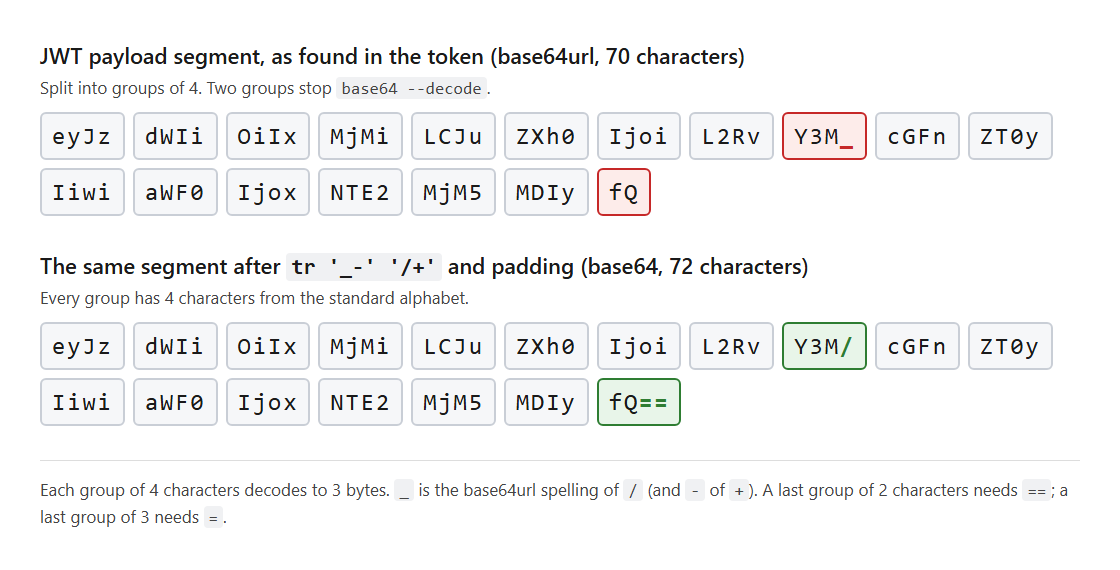
To decode the segment, translate the two characters back with tr, then pad:
Terminal (bash)
segment='eyJzdWIiOiIxMjMiLCJuZXh0IjoiL2RvY3M_cGFnZT0yIiwiaWF0IjoxNTE2MjM5MDIyfQ'
segment=$(echo "$segment" | tr '_-' '/+')
while [ $(( ${#segment} % 4 )) -ne 0 ]; do segment="$segment="; done
echo "$segment" | base64 --decodeNow the whole payload comes out:
Output
{"sub":"123","next":"/docs?page=2","iat":1516239022}The ? in /docs?page=2 is the character that was hiding behind the _. --ignore-garbage is the wrong fix here. It drops the _ instead of translating it, every character after it shifts by one position, and in my run the rest of the output was unreadable bytes.
Recent coreutils has a shorter way. GNU coreutils 8.31 and later ship basenc, which reads the URL-safe alphabet directly. It still requires the padding: without it, basenc prints the whole payload, then basenc: invalid input, and exits with 1. To decode the segment with basenc, add the ==:
Advertisements
Terminal (bash)
echo 'eyJzdWIiOiIxMjMiLCJuZXh0IjoiL2RvY3M_cGFnZT0yIiwiaWF0IjoxNTE2MjM5MDIyfQ==' | basenc --base64url --decodeThe output is the same JSON, with exit code 0.
Tested with GNU coreutils 9.4 (base64, basenc, tr, od) on Ubuntu 24.04.2 under WSL2. The 8.31 version number comes from the coreutils NEWS file, not from a test.
Where to go from here
You now have a decode command for each system you are likely to sit in front of, a way to prove that a decoded file is intact, and, for the times base64 refuses the input, a two-command check with tr and od that tells you which of the three fixes to apply. The habit worth keeping from all of this is the check: base64 says nothing when it succeeds and very little when it fails, and OpenSSL says nothing either way, so the byte count or the checksum is what tells you the data is right.
For a one-off string with no terminal around, the Base64 encoder and decoder runs in the browser. If what you are decoding is a whole JWT, the JWT decoder splits the token and decodes the header and the payload for you, without the tr and padding steps. For the reference behind the flags used here, the GNU coreutils manual for base64 documents --decode and --ignore-garbage, and RFC 4648 defines both alphabets.
Advertisements

Bachelor’s degree in Computer Science from the Federal University of Amazonas, with an MBA in Project Management from Fundação Getulio Vargas.
Currently works as an Engineering Manager at Méliuz.
With 20 years of experience in the field, has worked with a bit of everything: C, C++, Java, C#, Delphi, Node.js, AWS, PHP, Python, React, Angular, jQuery, and a whole bunch of other things that don’t even exist anymore 😀